
Three translators cover almost every situation: Apple Translate for offline menus, Baidu Translate for everything else, and Immersive Translate for the web.
1 Apple Translate (built-in on iPhone)
Apple Translate is already on your iPhone. It translates text, voice, and live conversations, and it works offline once you download the languages — perfect for menus the moment you land and have no data yet.
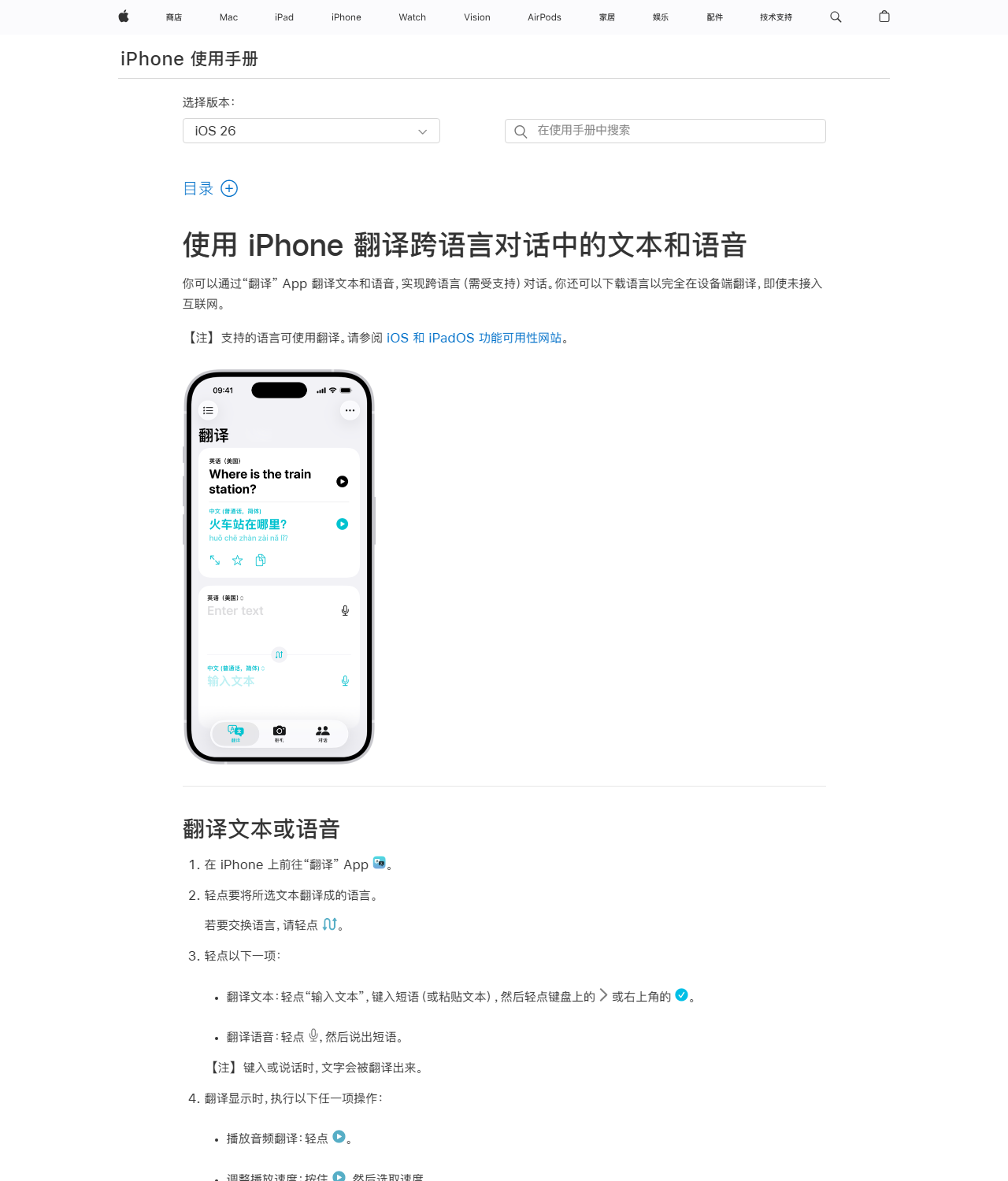
- No install. Open the Translate app, tap a language, and start typing or speaking.
- Download for offline. Settings → Translate → Downloaded Languages. Save Chinese (Simplified) and English before you fly.
- Camera translates menus. Open the app, tap the camera icon, and point at a printed menu or sign. The English overlays live on top of the Chinese.
- On-device mode is private. Translations happen on the phone, not in the cloud, so it works on airplane mode and keeps your text private.
2 Baidu Translate (百度翻译) — the local standard
Baidu Translate is the most-used translator in China and the one locals reach for first. It handles text, voice, photos, and documents, with strong Chinese-to-English quality and zero VPN required inside the mainland.
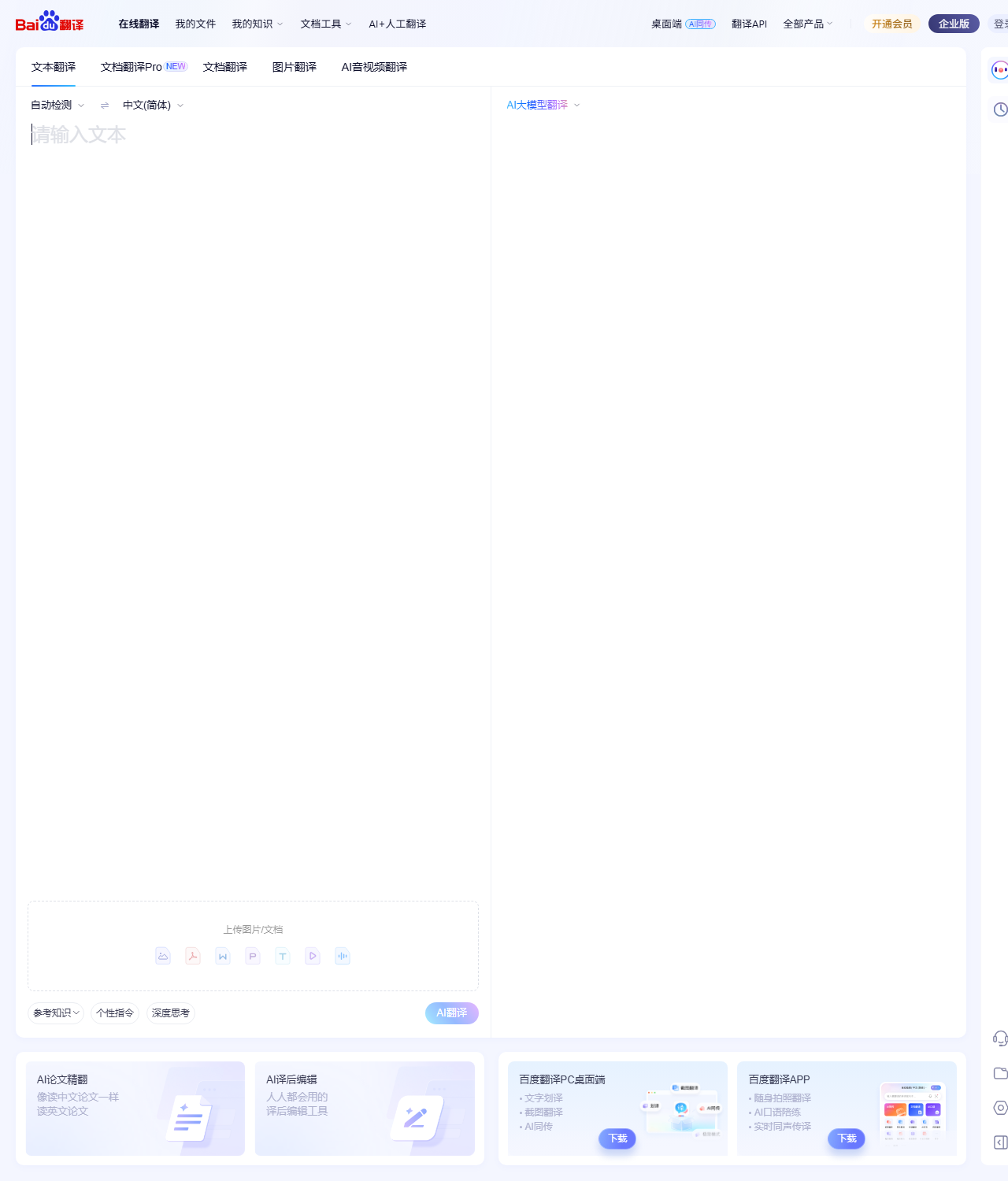
- Works inside China. No VPN needed. Google Translate does — Baidu does not. This alone is worth the install.
- Camera for menus and signs. Snap a photo of any Chinese text and the English translation appears in place.
- Documents, too. Upload a PDF, Word file, or email in the Documents tab. Useful for rental contracts, hotel bookings, or menu PDFs.
- Switch to English in Settings. The interface defaults to Chinese; one toggle flips it.
Tip: when a translation sounds wrong, paste the same text into Baidu and Google and compare — each catches things the other misses.
3 Immersive Translate (沉浸式翻译) — bilingual webpages & videos
Immersive Translate is a browser extension and iOS app that turns any webpage into a side-by-side bilingual view — original and translation, paragraph by paragraph. It also adds bilingual subtitles to YouTube, Netflix, and Coursera.
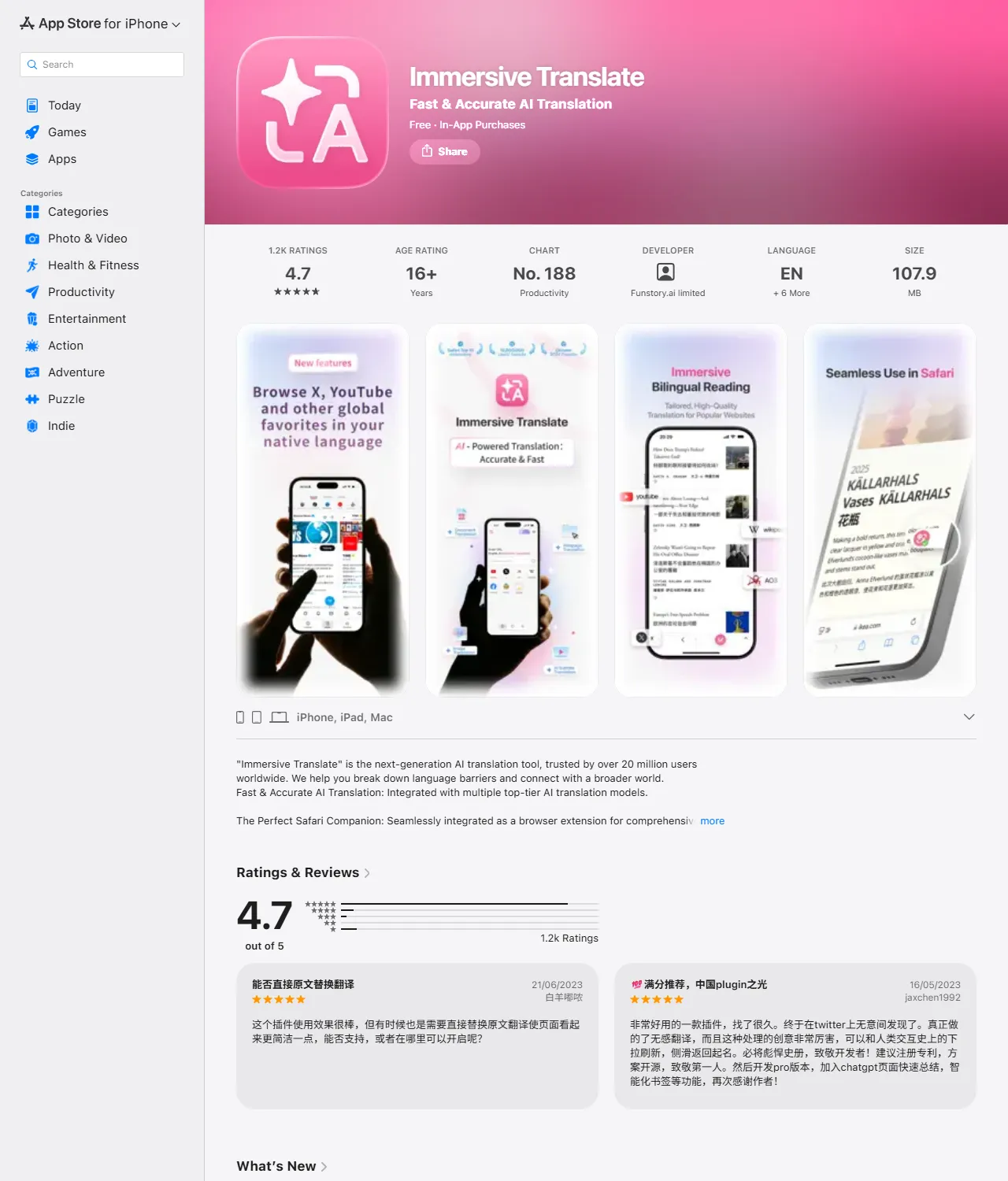
- Install the Safari extension on iPhone. Settings → Safari → Extensions → enable Immersive Translate. Grant it access to all websites.
- Tap the floating bubble on any page. The original Chinese (or English) sits on the left, the translation on the right. Best way to read Chinese news, travel blogs, or product reviews in their original.
- Bilingual YouTube. In the extension settings, turn on bilingual subtitles. You see the original and the translation together, line by line.
- Free tier is enough. The Pro upgrade unlocks DeepL, GPT, and Gemini translation models; the free tier uses Google and Microsoft, which are fine for most travel reading.